
Choosing Windows 11 can feel like one more decision on an already long PC shopping list. Home or Pro? Is the extra cost worthwhile? And will choosing Pro make a gaming PC or work laptop faster?
For most everyday users, Windows 11 Home covers the essentials. Pro becomes useful when you need particular tools for encryption, remote access, virtual machines or business device management. The right choice comes down to how you use your PC.
Windows 11 Home vs Pro at a Glance
Home and Pro share the same Windows foundation. Both support everyday apps, browsing, streaming, study and PC gaming. The main differences are the additional security controls, virtualisation tools and business features available in Pro.
| Feature | Windows 11 Home | Windows 11 Pro |
|---|---|---|
| Device Encryption | Yes, on supported devices | Yes, on supported devices |
| Secure Boot | Yes, on supported hardware | Yes, on supported hardware |
| Parental controls | Yes | Yes |
| Full BitLocker Drive Encryption management | No | Yes |
| Hyper-V | No | Yes* |
| Windows Sandbox | No | Yes* |
| Remote Desktop hosting | No; can connect to another PC | Yes |
| Local Group Policy Editor | No | Yes |
| Active Directory domain join | No | Yes |
| Microsoft Entra ID join | No | Yes |
| Assigned Access (kiosk mode) | No | Yes |
| Windows Autopilot support | No | Yes* |
| Core Windows, gaming and everyday security features | Yes | Yes |
| Maximum supported RAM | 128 GB | 2 TB |
*Feature availability depends on hardware, configuration and the Windows version installed. Hyper-V and Windows Sandbox require compatible virtualisation hardware. Windows Autopilot and some business management capabilities also require suitable organisational services, licensing and configuration. Device Encryption is available on supported devices; it does not provide the same management options as full BitLocker.
The Quick Answer: Home or Pro?
Choose Home for browsing, streaming, everyday productivity, schoolwork and gaming.
Choose Pro when you need a specific feature such as Remote Desktop hosting, full BitLocker management, Hyper-V, Windows Sandbox, Group Policy or joining a business domain.
Start with the feature you need, then choose the edition that includes it.
Windows 11 Pricing in Australia: What to Compare
For Australian buyers, the useful comparison is the current local price for the licence or PC you are actually buying. US retail prices and currency conversions do not tell you what a Windows licence will cost at an Australian checkout.
Compare current prices for Windows 11 Operating Systems at Umart in Australian dollars (AUD), and check the GST-inclusive total and any delivery costs before paying. Also check whether the listing is for Home or Pro, whether it is an OEM or retail product, and what installation media or delivery format is supplied.
If you are buying a laptop or pre-built desktop, check whether Windows is already included. If you are building a PC, include the operating system in your budget and read the licence requirements on the product page.
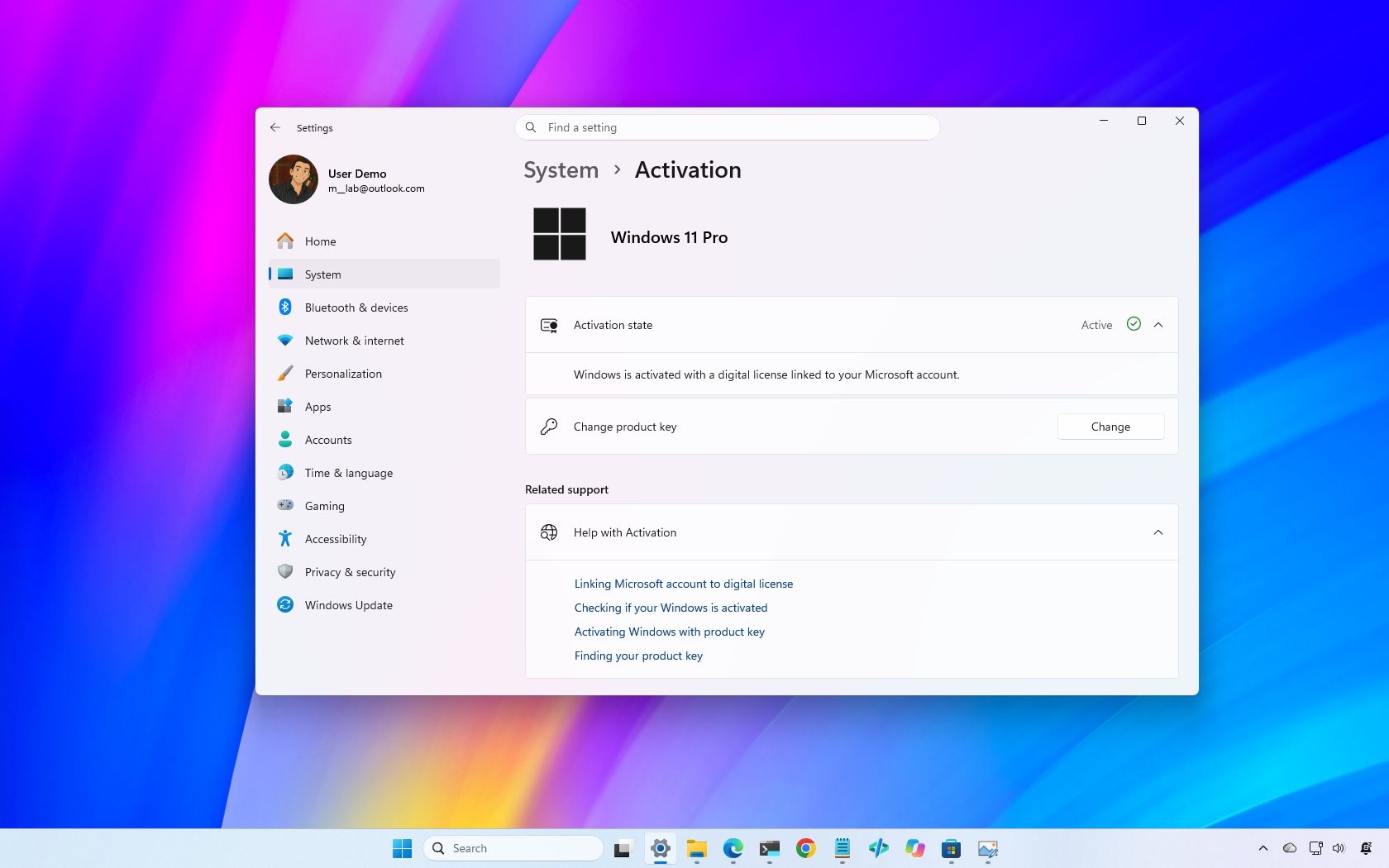
Already running an activated copy of Home? You can check the Pro upgrade offered through Settings > System > Activation and the Microsoft Store. An upgrade offer and a full Windows licence are different purchases, so compare the option that applies to your PC. Prices, promotions and availability can change.
The Pro Features That May Be Worth Paying For
Pro is easiest to justify when one of its extra features solves a practical problem. These are four of the most useful differences to consider.
Group Policy Editor: More Control Over Windows Settings
The Local Group Policy Editor gives advanced users and administrators another way to configure supported Windows settings, including update behaviour, security policies and access to selected features.
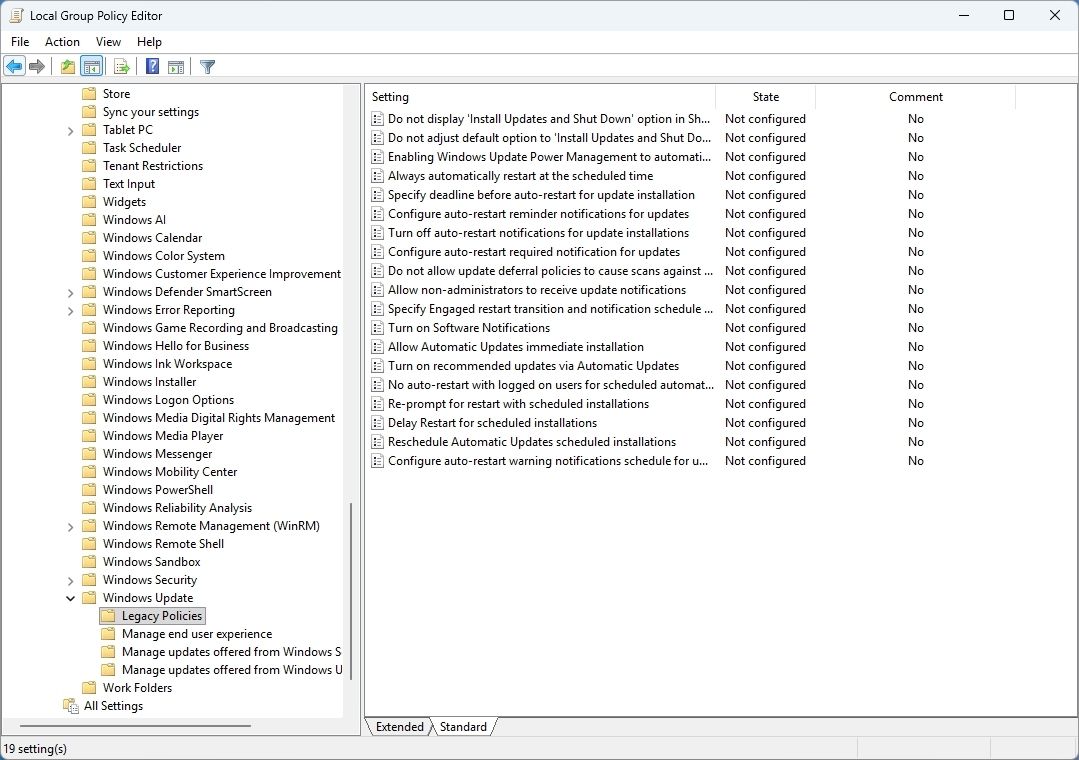
It can be useful if you regularly manage or troubleshoot PCs. For someone who mainly uses familiar apps and the standard Settings menu, it is unlikely to be a reason to upgrade on its own.
BitLocker: More Control Over Drive Encryption
Windows 11 Pro includes full BitLocker Drive Encryption management. That matters when you need to manage encrypted drives and recovery options more closely, particularly on a laptop used for work or sensitive files.
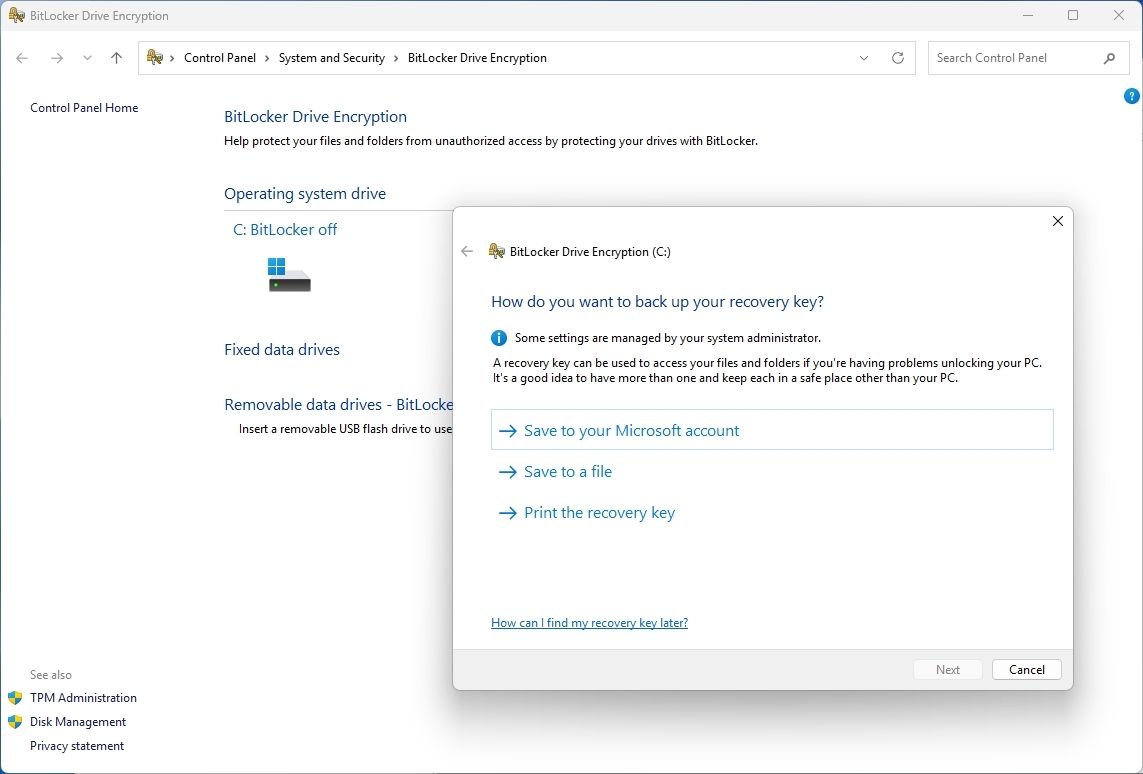
Home can still offer Device Encryption on supported hardware. The distinction is the level of control, rather than whether Home has any encryption at all. Check what your existing device supports before paying for Pro solely for this feature, and keep a secure copy of your recovery key.
Remote Desktop: Connect to Your PC From Another Device
Windows 11 Pro can act as a host for Microsoft's built-in Remote Desktop. This lets another device connect to and control that PC when the connection and network are configured appropriately.
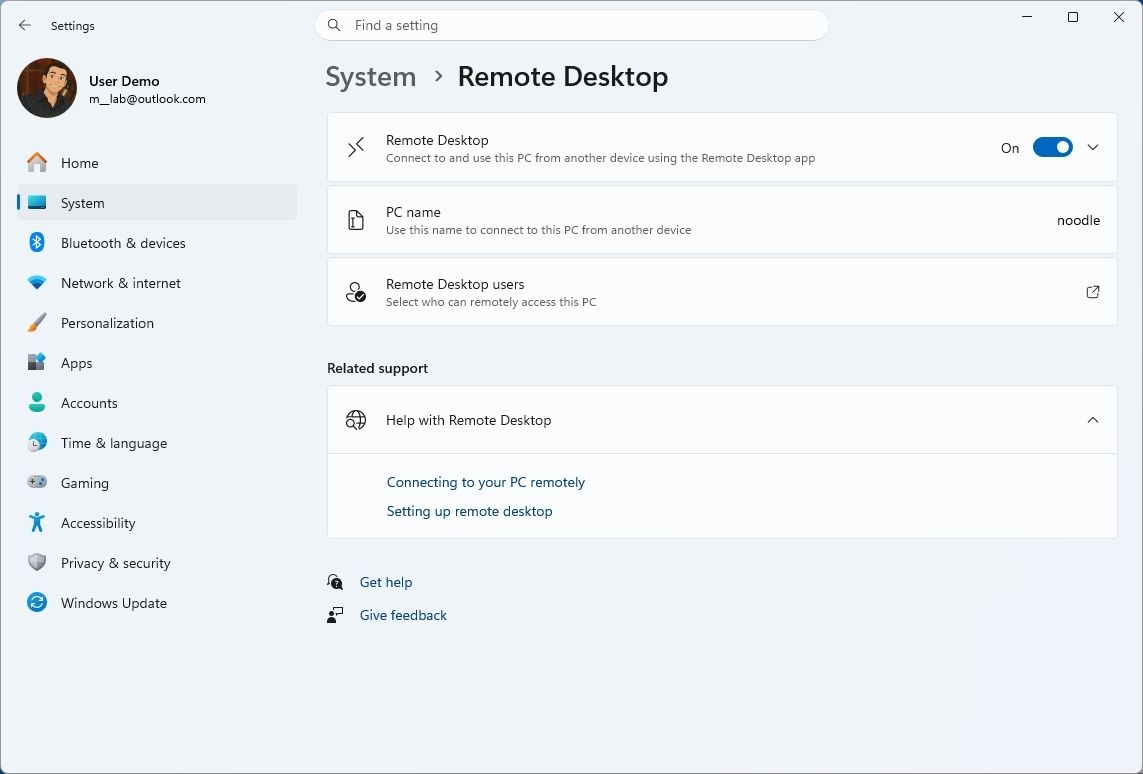
Home can connect to a compatible remote PC, but cannot host an incoming Microsoft Remote Desktop session. If accessing your main desktop remotely is part of your routine, this difference may decide the edition for you.
Windows Sandbox: A Temporary Space for Testing
Windows Sandbox provides an isolated Windows environment for trying applications or exploring files without installing them directly on your main desktop. Closing the sandbox discards its contents.
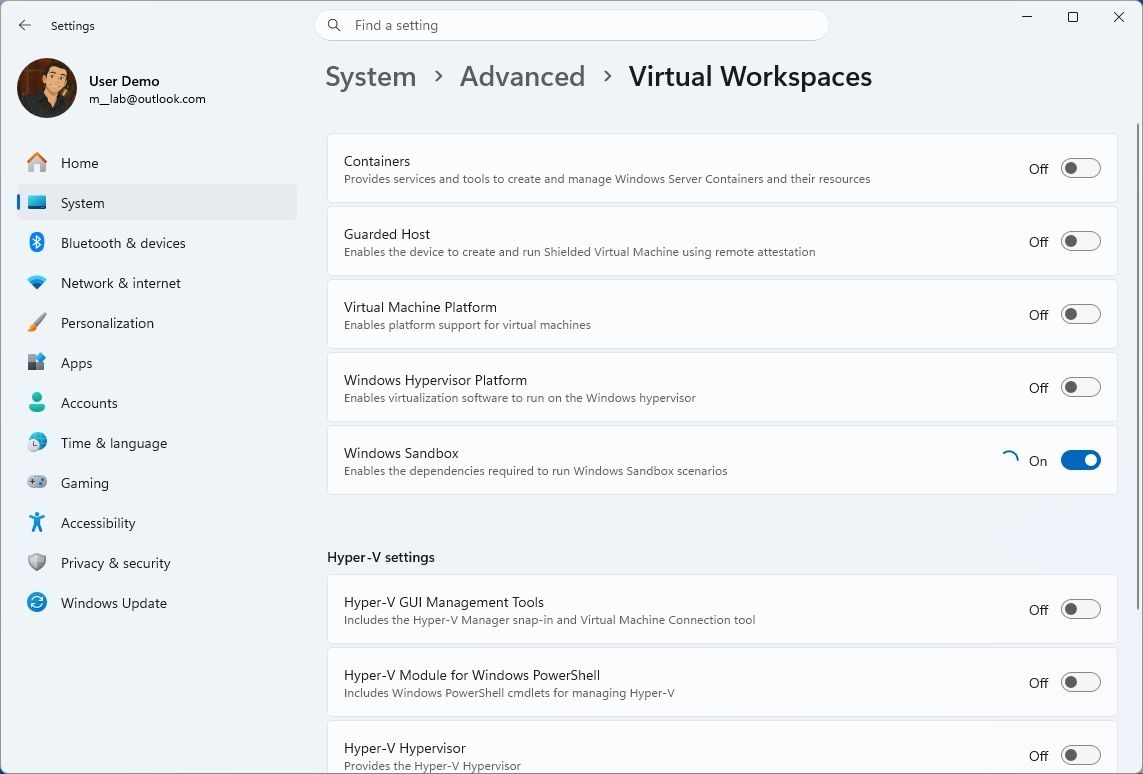
It is useful for developers, IT staff and people who often test software. It requires supported hardware and configuration, and is not included in Home. Network access and shared resources also need consideration when working with unfamiliar files.
Virtualisation: Do You Need Hyper-V?
Windows 11 Pro includes Hyper-V, which lets you create and manage virtual machines on compatible hardware. It can be useful for testing another Windows installation, running a Linux environment or building a development lab.
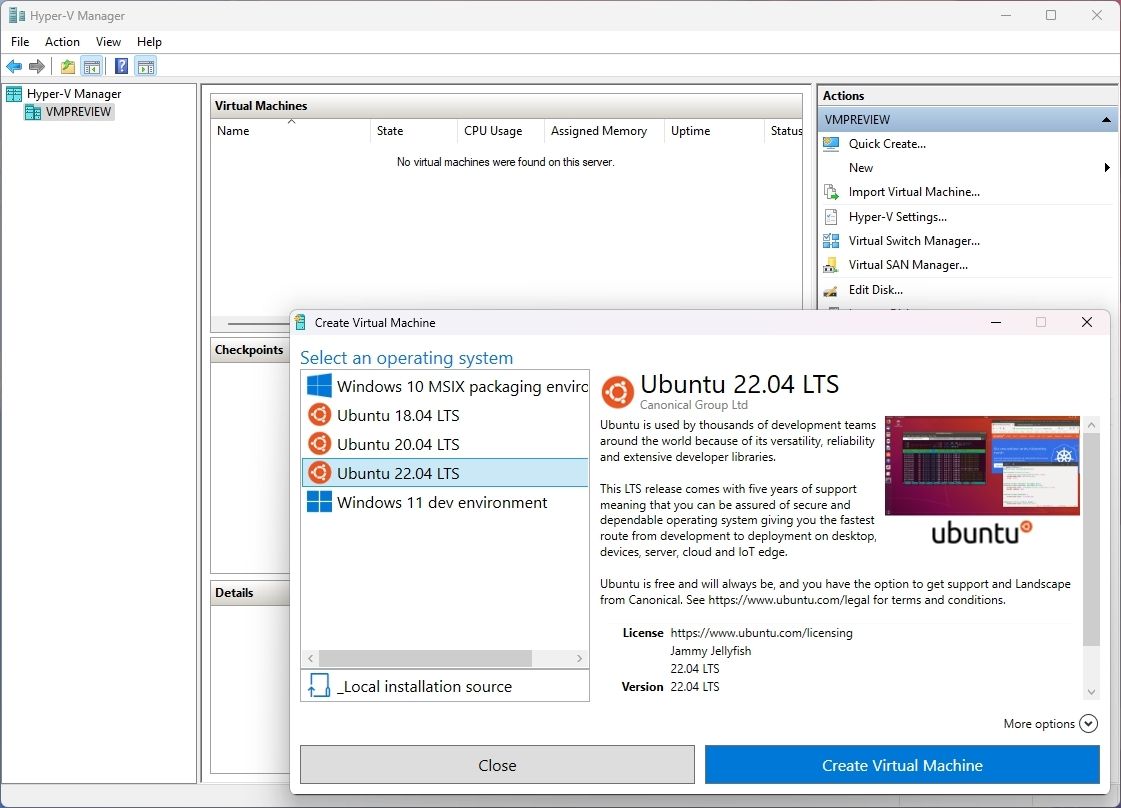
You do not need Pro simply to use Linux tools on Windows. Both editions support Windows Subsystem for Linux (WSL). Home users can also consider compatible third-party virtual machine software. Choose Pro when you specifically need Microsoft's built-in Hyper-V tools or Windows Sandbox.
Hardware Support: How Much Memory Do You Need?
Windows 11 Home supports up to 128 GB of RAM, while Pro supports up to 2 TB. These are operating system limits; your processor and motherboard may support less.
For a typical home, study or gaming PC, Home's memory limit is unlikely to be the deciding factor. Pro's higher ceiling becomes relevant to specialist workloads such as large datasets or demanding virtual machines. Match the edition to the hardware and applications you actually plan to use.
Windows 11 Home vs Pro for Gaming
For a PC built mainly for gaming, Home is usually the sensible starting point. Both editions support technologies such as DirectX 12, DirectStorage and Auto HDR when the game and hardware meet the relevant requirements.
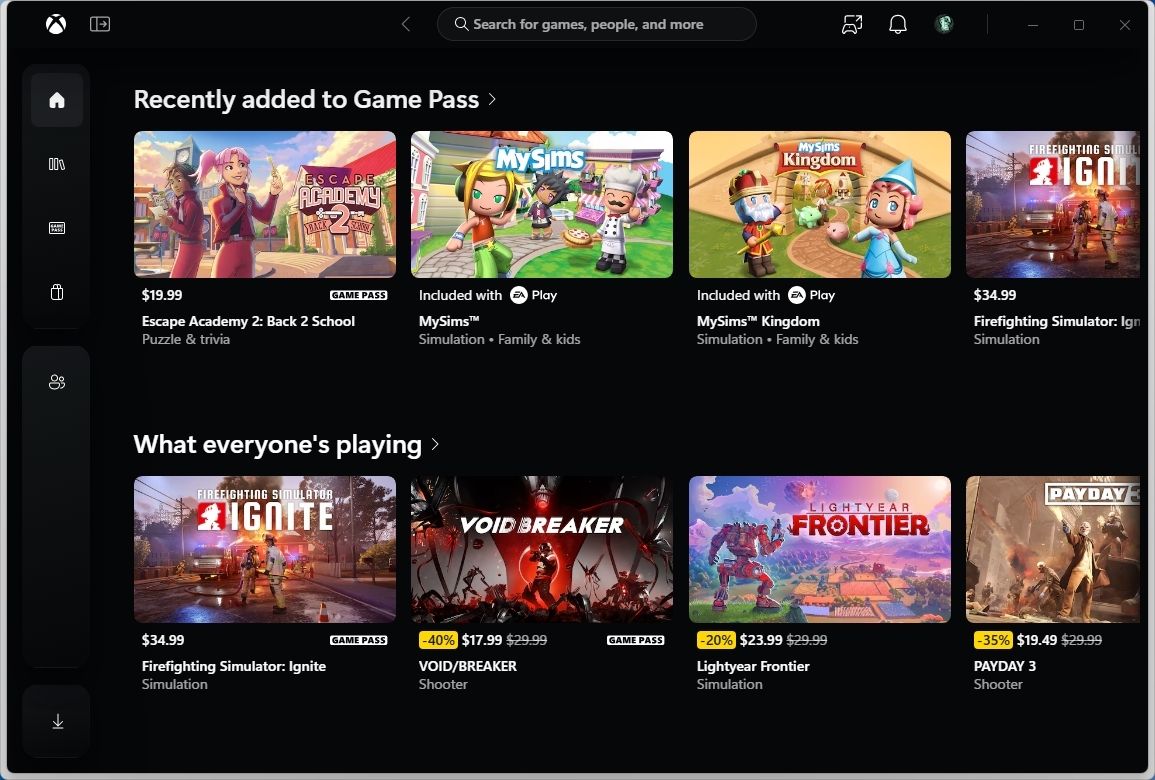
Installing Pro does not inherently deliver higher frame rates or better graphics. The processor, graphics card, memory and storage are more useful places to assess your gaming performance budget. Choose Pro for a gaming PC if you also need its extra work, management or testing features.
Windows 11 Pro for Business
Pro adds capabilities for PCs that need to fit into a managed business environment. These include Active Directory domain join, Microsoft Entra ID join and additional policy controls.
Buying a new work laptop? Browse Umart's Windows 11 Pro Laptops and check your employer's IT requirements before ordering. Some management services require separate subscriptions and organisational setup; purchasing Pro alone does not provide every Microsoft business service.
Will Pro Make Your PC Faster?
Pro is not an automatic performance upgrade. Home and Pro share the same core Windows platform. Everyday responsiveness depends much more on your hardware, available storage, background applications and system configuration.
Pro can support workloads that need its higher memory limit or additional tools, but changing editions alone will not turn an existing PC into a faster machine.
Which Edition Makes Sense for Students?
For most Australian school, TAFE and university work, Home can handle everyday productivity, research, video calls and compatible course software. The more useful check is whether the device meets the institution's operating system and application requirements.
Technical courses may require Hyper-V, Windows Sandbox or particular management features. Check your course or school device list before ordering. If two otherwise suitable PCs cost the same and one includes Pro, its extra capabilities may be useful; otherwise, buy for a clear requirement.
What About Windows 11 Pro for Workstations?
Windows 11 Pro for Workstations is a separate edition aimed at demanding professional systems. It supports higher hardware limits than standard Pro and is intended for specialised workstation configurations.
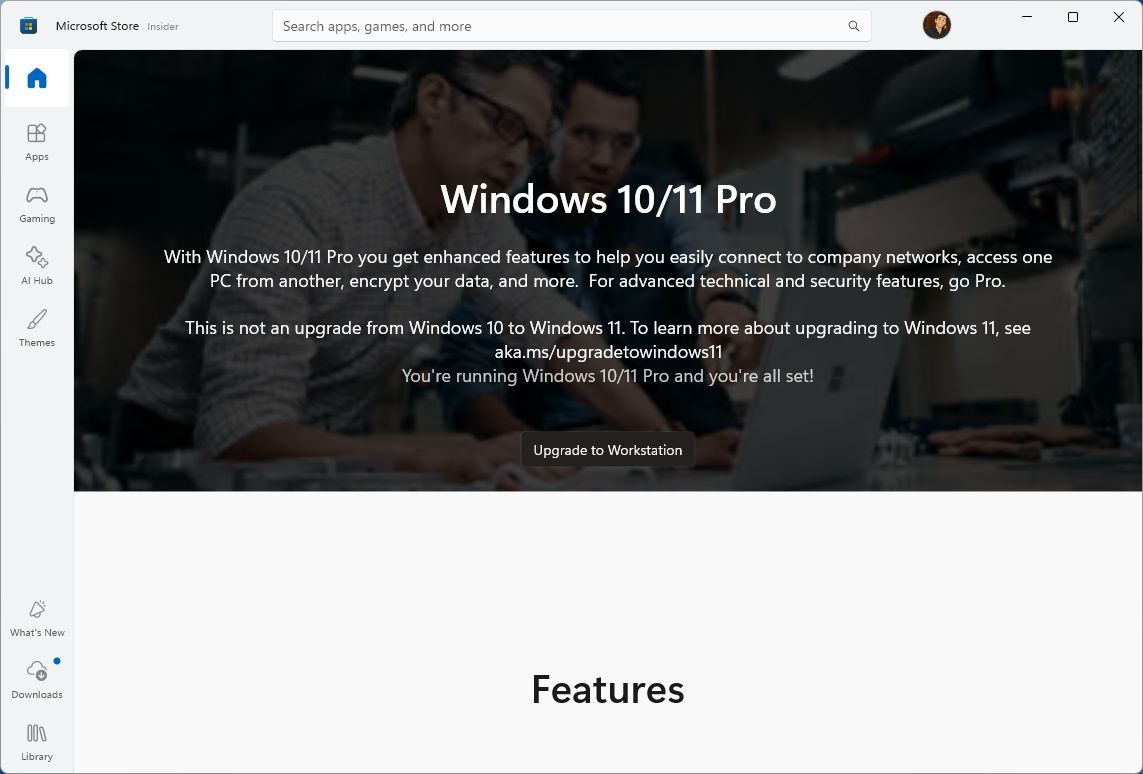
It is worth considering when a particular application, hardware specification or IT requirement calls for it. For a regular home desktop, student laptop or gaming system, start by comparing Home and Pro.
Which Windows 11 Edition Should You Choose?
Before adding a licence or choosing a new PC, ask which Windows features you will actually use.
- Home: A practical choice for everyday use, study, entertainment and gaming.
- Pro: A useful step up when you need managed encryption, Remote Desktop hosting, virtualisation, Group Policy or business integration.
- Pro for Workstations: An option for specialised professional systems with requirements beyond standard Pro.
If Home meets your needs today, an activated Home installation can be upgraded to Pro later. Check Microsoft's Home-to-Pro upgrade instructions for the available process.
Ready to choose? Compare Windows 11 Operating Systems or explore the Microsoft range at Umart. Check the edition already included with your PC, and put your budget towards the features you need.